# Fourme

{% hint style="info" %}

### 🆕 🚨 What's new?

The Chatbox can now be presented in a compact mode.

The visitor can then expand the chatbox manually. The chatbox is automatically expanded when the keyboard opens. This compact mode can be enabled by using a flag in the `ChatboxConfiguration.`

{% tabs %}
{% tab title="Android" %}

```kotlin
val configuration = ChatboxConfiguration()
configuration.smallerChatboxEnabled = true // Default is false
IAdvizeSDK.chatboxController.setupChatbox(configuration)
```

{% endtab %}

{% tab title="iOS" %}

```swift
var configuration = ChatboxConfiguration()
configuration.isSmallerChatboxEnabled = true // Default is false.
IAdvizeSDK.shared.chatboxController.setupChatbox(configuration: configuration)
```

{% endtab %}

{% tab title="React Native" %}

```javascript
const configuration: ChatboxConfiguration = {
  ...

  isSmallerChatboxEnabled: true,

  ...
};
IAdvizeSDK.setChatboxConfiguration(configuration);
```

{% endtab %}

{% tab title="Flutter" %}

```dart
IAdvizeSdk.setChatboxConfiguration(ChatboxConfiguration(
  // ...
  isSmallerChatboxEnabled: true,
  // ...
);
```

{% endtab %}
{% endtabs %}
{% endhint %}

## ⚙️ Prerequisites

There are a few steps required before you start integrating the iAdvize Mobile SDK.

## 💬 Setting up your iAdvize environment <a href="#setting-up-your-iadvize-environment" id="setting-up-your-iadvize-environment"></a>

Before integrating the SDK, you need to check that your iAdvize environment is ready to use (i.e. you have an account ready to receive and answer to conversations from the SDK). You will also need some information related to the project for the SDK setup. Please ask your iAdvize administrator to follow the instructions available on the [SDK Knowledge Base](https://help.iadvize.com/hc/en-gb/articles/360019839480) and to provide you with the **Project Identifier** as well as a **Targeting Rule Identifier**.

{% hint style="warning" %}
*Your iAdvize administrator should already have configured the project on the* [*iAdvize Administration Desk*](https://ha.iadvize.com/admin/login/) *and created an operator account for you. If it is not yet the case please contact your iAdvize Technical Project Manager.*
{% endhint %}

## 💻 Connecting to your iAdvize Operator Desk <a href="#connecting-to-your-iadvize-operator-desk" id="connecting-to-your-iadvize-operator-desk"></a>

Using your operator account please log into the [iAdvize Desk](https://ha.iadvize.com/admin/login/).

{% hint style="warning" %}
*If you have the Administrator status in addition to your operator account, you will be directed to the Admin Desk when logging in. Just click on the `Chat` button in the upper right corner to open the Operator Desk.*
{% endhint %}

The iAdvize operator desk is the place where the conversations that are assigned to your account will pop up. Please ensure that your status is “Available" by enabling the corresponding chat or video toggle buttons in the upper right corner:

<figure><img src="https://76519009-files.gitbook.io/~/files/v0/b/gitbook-x-prod.appspot.com/o/spaces%2FC3dwvuSeenw12Wd9Vfpf%2Fuploads%2Fgit-blob-f3f49b3d03cab042dad90bf6a92a7b01efef4d73%2Fimage.png?alt=media" alt=""><figcaption><p>The chat button is green, your operator can receive incoming conversations.</p></figcaption></figure>

If the toggle button is yellow, it means you have reached your maximum simultaneous chat slots, please end your current conversations to free a chat slot and allow the conversations to be assigned to you. If the toggle is red you are not available to chat.

## 🔐 Ensuring the SDK integrity <a href="#ensuring-the-sdk-integrity-android" id="ensuring-the-sdk-integrity-android"></a>

Before downloading the iAdvize Mobile SDK artifacts you can verify their integrity by generating their checksums and comparing them with the reference checksums available.

{% tabs %}
{% tab title="Android" %}
Reference checksums are available:

* in the [GitHub release note](https://github.com/iadvize/iadvize-android-sdk/releases/latest)
* in the [dedicated spreadsheet](https://docs.google.com/spreadsheets/d/11A5RScYGCg17rFXp-RaMyVIUqsd3WacXiTjxk3GNZyk)

The Android SDK consists of an archive (`aar` file) and a Maven project description (`pom` file), you can generate their checksums using the following commands (replace `x.y.z` by the SDK version you are checking):

```bash
curl -sL https://github.com/iadvize/iadvize-android-sdk/raw/master/com/iadvize/iadvize-sdk/x.y.z/iadvize-sdk-x.y.z.aar | openssl sha256

curl -sL https://github.com/iadvize/iadvize-android-sdk/raw/master/com/iadvize/iadvize-sdk/x.y.z/iadvize-sdk-x.y.z.pom | openssl sha256
```

This ensures that the online packages are valid. In order to check those checksums on the fly, this process can be automated via Gradle by adding a metadata verification xml file at `$PROJECT_ROOT/gradle/verification-metadata.xml`:

```xml
<?xml version="1.0" encoding="UTF-8"?>
<verification-metadata ...>
   <configuration>
      <verify-metadata>true</verify-metadata>
      <verify-signatures>false</verify-signatures>
   </configuration>
   <components>
      <component group="com.iadvize" name="iadvize-sdk" version="x.y.z">
         <artifact name="iadvize-sdk-2.8.2.aar">
            <sha256 value="checksum value" origin="iAdvize website" />
         </artifact>
         <artifact name="iadvize-sdk-x.y.z.pom">
            <sha256 value="checksum value "origin="iAdvize website" />
         </artifact>
      </component>
   </components>
</verification-metadata>
```

With this file present in your project structure, Gradle will automatically check the artifacts checksums before integrating them into your app. Please note that you will have to do this for **all dependencies** used in your project. To help you with that, `verification-metadata.xml` for the SDK sub-dependencies is delivered alongside the SDK. Those subdependencies checksums have been generated through the Gradle generation feature and not verified.
{% endtab %}

{% tab title="iOS" %}
Reference checksums are available:

* in the [GitHub release note](https://github.com/iadvize/iadvize-ios-sdk/releases/latest)
* in the [dedicated spreadsheet](https://docs.google.com/spreadsheets/d/11A5RScYGCg17rFXp-RaMyVIUqsd3WacXiTjxk3GNZyk)

**Swift Package Manager integration**

The iOS SDK only consists of an archive (`zip` file). You can generate its checksums using the following command (replace `x.y.z` by the SDK version you are checking):

```bash
curl -sL https://github.com/iadvize/iadvize-ios-sdk/releases/download/x.y.z/IAdvizeSDK.zip | openssl sha3-256
```

SPM will also automatically verify that the checksum of the artifact it downloads correspond to the one described in the `Package.swift` available in the public repository (it's a SHA2-256 checksum).

**CocoaPods integration**

The iOS SDK consists of an archive (`zip` file) and a Cocoapods project description file (`podspec` file). You can generate their checksums using the following commands (replace `x.y.z` by the SDK version you are checking):

```bash
curl -sL https://github.com/iadvize/iadvize-ios-sdk/releases/download/x.y.z/IAdvizeSDK.zip | openssl sha3-256

curl -sL https://raw.githubusercontent.com/CocoaPods/Specs/master/Specs/d/0/0/iAdvize/x.y.z/iAdvize.podspec.json | openssl sha3-256
```

After downloading the SDK through CocoaPods, additional verifications can be made, first by comparing the podspec checksum at the end of the generated `Podfile.lock` with the SHA1 podspec reference checksum.

```
SPEC CHECKSUMS:
  iAdvize: podspec-sha1-checksum
```

The downloaded framework integrity can also be checked by generating the local pod files checksums and comparing them with the online reference ones:

```bash
cd Pods/iAdvize
find IAdvizeConversationSDK.xcframework -type f -exec openssl sha3-256 {} \; >> IAdvizeSDK-local.checksums
```

{% endtab %}

{% tab title="React Native" %}
Our React Native SDK plugin is hosted on an external platform called [Node Package Manager (NPM)](https://www.npmjs.com/) that already has internal checksum validation strategies in order to ensure that the downloaded plugin code (the wrapper code) is untampered.
{% endtab %}

{% tab title="Flutter" %}
Our Flutter SDK plugin is hosted on an external platform called [pub.dev](https://pub.dev/), that already has internal checksum validation strategies in order to ensure that the downloaded plugin code (the wrapper code) is untampered.
{% endtab %}
{% endtabs %}

## ⚙️ Setting up the SDK <a href="#setting-up-the-sdk-ios" id="setting-up-the-sdk-ios"></a>

### **1️⃣ Setting up the SDK into your project configuration**

First of all, to be able to use the SDK you need to add the SDK dependency into your project. Some configuration steps will also be needed in order to use it.

{% tabs %}
{% tab title="Android" %}
Add the iAdvize repository to your project repositories inside your top-level Gradle build file:

```gradle
// Project-level build.gradle.kts

allprojects {
  repositories {
    maven(url = uri("https://raw.github.com/iadvize/iadvize-android-sdk/master"))
    maven(url = uri("https://jitpack.io"))
  }
}
```

Add the iAdvize Mobile SDK dependency inside your module-level Gradle build file (replace `x.y.z` by the latest SDK version available):

```gradle
// Module-level build.gradle.kts

configurations {
  all {
    exclude(group = "xpp3", module = "xpp3")
  }
}

dependencies {
  implementation("com.iadvize:iadvize-sdk:x.y.z")
}
```

{% hint style="info" %}
*The `exclude` configuration is required because the iAdvize Mobile SDK uses* [*Smack*](https://github.com/igniterealtime/Smack)*, an XMPP library that is built upon `xpp3`, which is bundled by default in the Android framework. This exclude ensures that your app does not also bundle `xpp3` to avoid classes duplication errors.*
{% endhint %}

If you have build problems this may come from compatibility issues with the Android configuration, here are the versions used by the iAdvize Mobile SDK:

| Target SDK            | `35`     |
| --------------------- | -------- |
| Compile SDK           | `35`     |
| Minimum SDK           | `24`     |
| Build Tools           | `35.0.0` |
| Kotlin                | `2.1.10` |
| Gradle                | `8.13`   |
| Android Gradle Plugin | `8.9.0`  |

After syncing your project you should be able to import the iAdvize dependency in your application code with `import com.iadvize.conversation.sdk.IAdvizeSDK`

You will then need to provide a reference to your application object and initialize the SDK with it.

In your `AndroidManifest.xml` declare your application class:

```xml
<application android:name="my.app.package.App">
  <!-- your activities etc... -->
</application>
```

This class should then initialize the SDK:

```kotlin
package my.app.package.App

class App : Application() {
  override fun onCreate() {
    super.onCreate()
    IAdvizeSDK.initiate(this)
  }
}
```

⌨️ **In-context example:**

* [Project-level Gradle file](https://github.com/iadvize/iadvize-android-sdk/blob/master/example/build.gradle.kts)
* [Module-level Gradle file](https://github.com/iadvize/iadvize-android-sdk/blob/master/example/mobile/build.gradle.kts)
* [Import](https://github.com/iadvize/iadvize-android-sdk/blob/master/example/mobile/src/main/java/com/iadvize/conversation/sdk/demo/feature/App.kt#L5)
* [SDK Initiation](https://github.com/iadvize/iadvize-android-sdk/blob/master/example/mobile/src/main/java/com/iadvize/conversation/sdk/demo/feature/App.kt#L15)

{% hint style="info" %}
*The SDK supports video conversations using a third-party native (C++) binaries. If you are delivering your app using an APK you will note a size increase as the default behavior of the build system is to include the binaries for each ABI in a single APK. We strongly recommended that you take advantage of either* [*App Bundles*](https://developer.android.com/guide/app-bundle) *or* [*APK Splits*](https://developer.android.com/studio/build/configure-apk-splits) *to reduce the size of your APKs while still maintaining maximum device compatibility.*
{% endhint %}
{% endtab %}

{% tab title="iOS" %}
{% tabs %}
{% tab title="SPM" %}
From Xcode go to `File > Add Packages`, then paste the iAdvize Messenger SDK URL <https://github.com/iadvize/iadvize-ios-sdk> in the top-right search bar. Select the versioning strategy fitting your app then click on `Add Package`.

You should then be able to import the iAdvize dependency in your application code using `import IAdvizeConversationSDK`

⌨️ **In-context example:** [Import](https://github.com/iadvize/iadvize-ios-sdk/blob/master/example/SPMIntegration/SPMIntegration/Source/AppDelegate%2BiAdvize.swift#L10)
{% endtab %}

{% tab title="CocoaPods" %}
Add this line to your `Podfile`, inside the `target` section (replace `x.y.z` by the latest SDK version available, and choose the versioning strategy fitting your app):

```ruby
platform :ios, '13.0'

target 'YOUR_TARGET' do
  project 'YOUR_PROJECT'
  pod 'iAdvize', 'x.y.z'
end
```

{% hint style="warning" %}
*iAdvize Messenger SDK requires a **minimum iOS platform** of 13.&#x30;**.***
{% endhint %}

After running `pod install` you should be able to import the iAdvize dependency in your application code with `import IAdvizeConversationSDK`

⌨️ **In-context example:**

* [Podfile](https://github.com/iadvize/iadvize-ios-sdk/blob/master/example/CocoaPodsIntegration/Podfile#L1)
* [Import](https://github.com/iadvize/iadvize-ios-sdk/blob/master/example/CocoaPodsIntegration/CocoaPodsIntegration/Source/AppDelegate%2BiAdvize.swift#L10)
  {% endtab %}
  {% endtabs %}

{% hint style="info" %}
*The SDK supports video conversations. Thus it will request camera and microphone access before entering a video call. To avoid the app to crash, you have to setup two keys in your app Info.plist*

```
<key>NSCameraUsageDescription</key>
<string>This application will use the camera to share photos and during video calls.</string>
<key>NSMicrophoneUsageDescription</key>
<string>This application will use the microphone during video calls.</string>
```

{% endhint %}
{% endtab %}

{% tab title="React Native" %}
Download the library from `NPM` using the following command:

```bash
npm install @iadvize-oss/iadvize-react-native-sdk
```

Alternatively, you can use `Yarn`:

```bash
yarn add @iadvize-oss/iadvize-react-native-sdk
```

The SDK API is then available via the following import:

```javascript
import IAdvizeSDK from '@iadvize-oss/iadvize-react-native-sdk';
```

{% tabs %}
{% tab title="Android setup" %}
In your `android/build.gradle` file, and add the iAdvize SDK repository. You also need to ensure that you are using the right Android framework to build (iAdvize Mobile SDK is built with Android target 35):

```gradle
// android/build.gradle

buildscript {
  ext {
    buildToolsVersion = "35.0.0"
    minSdkVersion = 24
    compileSdkVersion = 35
    targetSdkVersion = 35
    kotlinVersion = "2.1.10"
    gradleVersion = "8.9.0"
    ndkVersion = "29.0.13113456"
  }
}

allprojects {
  repositories {
    maven { url "https://raw.github.com/iadvize/iadvize-android-sdk/master" }
    maven { url "https://jitpack.io" }
  }
}
```

{% hint style="warning" %}
*iAdvize Messenger SDK requires a **minSdkVersion** >= 24.*
{% endhint %}

On Android, the iAdvize Messenger SDK needs to be initialized before use to allow several functionalities to work. For instance, the default floating button use an ActivityLifecycleController that must be started before the main ReactNative activity is created, otherwise the controller won't be able to trigger the button display. Thus you need to add those lines in the `android/app/src/main/java/yourpackage/MainApplication.java` to initialize the SDK properly:

```java
// android/app/src/main/java/yourpackage/MainApplication.java

import com.iadvize.conversation.sdk.IAdvizeSDK;

public class MainApplication extends Application implements ReactApplication {
   @Override
   public void onCreate() {
     super.onCreate();
     IAdvizeSDK.initiate(this);
   }
}
```

{% endtab %}

{% tab title="iOS setup" %}
Add this line to your `Podfile`, inside the `target` section (replace `x.y.z` by the latest SDK version available, and choose the versioning strategy fitting your app):

```ruby
target 'YOUR_TARGET' do
  project 'YOUR_PROJECT'
  pod 'iAdvize', 'x.y.z'
end
```

{% hint style="warning" %}
*iAdvize Messenger SDK requires a **minimum iOS platform** of 13.4*
{% endhint %}

Once this is done, make sure to go to `ios` folder and install CocoaPods dependencies:

```bash
cd ios && pod install --repo-update
```

{% hint style="info" %}
*The SDK supports video conversations. Thus it will request camera and microphone access before entering a video call. To avoid the app to crash, you have to setup two keys in your app Info.plist*

```
<key>NSCameraUsageDescription</key>
<string>This application will use the camera to share photos and during video calls.</string>
<key>NSMicrophoneUsageDescription</key>
<string>This application will use the microphone during video calls.</string>
```

{% endhint %}
{% endtab %}
{% endtabs %}
{% endtab %}

{% tab title="Flutter" %}
Download the library from `pub.dev` using the following command:

```bash
flutter pub add iadvize_flutter_sdk
```

The SDK API is then available via the following import:

```dart
import 'package:iadvize_flutter_sdk/iadvize_sdk.dart';
```

{% tabs %}
{% tab title="Android setup" %}
In your `android/build.gradle` file, and add the iAdvize SDK repository:

```gradle
// android/build.gradle

allprojects {
  repositories {
    maven { url "https://raw.github.com/iadvize/iadvize-android-sdk/master" }
    maven { url "https://jitpack.io" }
  }
}
```

You also need to ensure that you are using the right Android framework to build (iAdvize Messenger SDK is built with Android target 35), as a good practice, also check that you are using the latest Kotlin version in `android/build.gradle` (you can find the version used in the plugin through its README file)

```gradle
// android/build.gradle

allprojects {
  ext {
    buildToolsVersion = "35.0.0"
    minSdkVersion = 24
    compileSdkVersion = 35
    targetSdkVersion = 35
    kotlinVersion = "2.1.10"
    gradleVersion = "8.9.0"
    ndkVersion = "29.0.13113456"
  }
}
```

{% hint style="warning" %}
*iAdvize Messenger SDK requires a **minSdkVersion** >= 24.*
{% endhint %}
{% endtab %}

{% tab title="iOS setup" %}
Add this line to your `Podfile`, inside the `target` section (replace `x.y.z` by the latest SDK version available, and choose the versioning strategy fitting your app):

```ruby
platform :ios, '13.4'

target 'YOUR_TARGET' do
  project 'YOUR_PROJECT'
  pod 'iAdvize', 'x.y.z'
end
```

{% hint style="warning" %}
*iAdvize Messenger SDK requires a **minimum iOS platform** of 13.4*
{% endhint %}

Once this is done, make sure to go to `ios` folder and install CocoaPods dependencies:

```bash
cd ios && pod install --repo-update
```

{% hint style="info" %}
*The SDK supports video conversations. Thus it will request camera and microphone access before entering a video call. To avoid the app to crash, you have to setup two keys in your app Info.plist*

```
<key>NSCameraUsageDescription</key>
<string>This application will use the camera to share photos and during video calls.</string>
<key>NSMicrophoneUsageDescription</key>
<string>This application will use the microphone during video calls.</string>
```

{% endhint %}
{% endtab %}
{% endtabs %}
{% endtab %}
{% endtabs %}

### **2️⃣ Activating the SDK**

Now that the SDK is available into your project build, let's integrate it into your app, first by activating it. Activation is the step that logs a user into the iAdvize flow.

You can choose between multiple authentication options:

<table data-header-hidden><thead><tr><th width="144"></th><th></th></tr></thead><tbody><tr><td><strong>Anonymous</strong></td><td>For an unidentified user browsing your app.</td></tr><tr><td><strong>Simple</strong></td><td>For a logged in user in your app.<br>You must pass a unique string identifier so that the visitor will retrieve his conversation history across multiple devices and platforms.<br><br><em><mark style="color:orange;">The identifier that you pass must be</mark><mark style="color:orange;"> </mark><mark style="color:orange;"><strong>unique</strong></mark><mark style="color:orange;"> </mark><mark style="color:orange;">and</mark><mark style="color:orange;"> </mark><mark style="color:orange;"><strong>non-discoverable</strong></mark><mark style="color:orange;"> </mark><mark style="color:orange;">for each different logged-in user.</mark></em></td></tr><tr><td><strong>Secured</strong></td><td>Use it in conjunction with your in-house authentication system. You must pass a <em>JWE provider</em> callback that will be called when an authentication is required, you will then have to call your third party authentication system for a valid JWE to provide to the SDK.<br><br><em>For a full understanding of how the secured authentication works in the iAdvize platform you can refer to this</em> <a href="../../../use-cases/visitor-experience/authenticated-messaging"><em>section</em></a><em>.</em></td></tr></tbody></table>

To activate the SDK you must use the `activate` function with your `projectId` (see the [Prerequisites](#prerequisites) section above to get that identifier). You have access to callbacks in order to know if the SDK has been successfully activated. In case of an SDK activation failure the callback will give you the reason of the failure and you may want to retry later.

{% tabs %}
{% tab title="Android" %}

```kotlin
IAdvizeSDK.activate(
  projectId = projectId,
  authenticationOption = authOption,
  gdprOption = gdprOption,
  callback = object : IAdvizeSDK.Callback {
    override fun onSuccess() {
      Log.d("iAdvize SDK", "The SDK has been activated.")
    }
    override fun onFailure(error: IAdvizeSDK.Error) {
      Log.e("iAdvize SDK", "The SDK activation failed with:", error)
    }
  }
)
```

⌨️ **In-context example:** [SDK Activation](https://github.com/iadvize/iadvize-android-sdk/blob/master/example/mobile/src/main/java/com/iadvize/conversation/sdk/demo/feature/App.kt#L32)
{% endtab %}

{% tab title="iOS" %}

```swift
IAdvizeSDK.shared.activate(projectId: projectId,
                           authenticationOption: authOption,
                           gdprOption: gdprOption)) { success in
    if success {
        ...
    }
}
```

⌨️ **In-context example:** [SDK Activation](https://github.com/iadvize/iadvize-ios-sdk/blob/master/example/SPMIntegration/SPMIntegration/Source/AppDelegate%2BiAdvize.swift#L61)
{% endtab %}

{% tab title="React Native" %}

```javascript
try {
  // Anonymous Auth => Do not set the onJWERequested listener & set an empty userId
  await IAdvizeSDK.activate(projectId, '', ...);
  
  // Simple Auth => Do not set the onJWERequested listener & set a non-empty userId
  await IAdvizeSDK.activate(projectId, "my-user-unique-id", ...);
  
  // Secured Auth => Set the onJWERequested listener
  IAdvizeSDKListeners.onJWERequested(function (eventData: any) {
    console.log('onJWERequested' + ' ' + eventData);
    
    // Fetch JWE from your 3rd-party auth system
    
    // In SDK v3, you must return the value here (synchronously)
    var jwe = ... ;
    return jwe;
    
    // In SDK v4, you should the value using an asynchronous API call (here or elsewhere)
    IAdvizeSDK.provideJWE(jwe);
  });
  await IAdvizeSDK.activate(projectId, '', ...);

  // SDK is activated
} catch (e) {
  // SDK failed to activate
}
```

{% endtab %}

{% tab title="Flutter" %}

```dart
IAdvizeSdk.activate(
  projectId: 'projectId',
  authenticationOption: authOption
  gdprOption: gdprOption,
  ).then((bool activated) => activated
      ? log('iAdvize Example : SDK activated')
      : log('iAdvize Example : SDK not activated'));
```

{% endtab %}
{% endtabs %}

Once the iAdvize Mobile SDK is successfully activated, you should see a success message in the console:

```
✅ iAdvize conversation activated, the version is x.y.z
```

### **3️⃣ Logging the user out**

You will have to explicitly call the `logout` function of the iAdvize Mobile SDK when the user sign out of your app.

{% tabs %}
{% tab title="Android" %}

```kotlin
IAdvizeSDK.logout()
```

{% endtab %}

{% tab title="iOS" %}

```swift
IAdvizeSDK.shared.logout()
```

{% endtab %}

{% tab title="React Native" %}

```javascript
IAdvizeSDK.logout()
```

{% endtab %}

{% tab title="Flutter" %}

```dart
IAdvizeSdk.logout();
```

{% endtab %}
{% endtabs %}

### **4️⃣ Displaying logs**

To have more information on what’s happening on the SDK side you can change the log level.

{% tabs %}
{% tab title="Android" %}

<pre class="language-kotlin"><code class="lang-kotlin"><strong>// VERBOSE, INFO, WARNING, ERROR, NONE
</strong>// Default is WARNING
IAdvizeSDK.logLevel = Logger.Level.VERBOSE
</code></pre>

{% endtab %}

{% tab title="iOS" %}

```swift
// verbose, info, warning, error, success, none
// Default is warning
IAdvizeSDK.shared.logLevel = .verbose
```

{% endtab %}

{% tab title="React Native" %}

```javascript
// VERBOSE, INFO, WARNING, ERROR, SUCCESS, NONE
// Default is WARNING
IAdvizeSDK.setLogLevel(LogLevel.VERBOSE);
```

{% endtab %}

{% tab title="Flutter" %}

```dart
// verbose, info, warning, error, success, none
// Default is warning
IAdvizeSdk.setLogLevel(LogLevel.verbose);
```

{% endtab %}
{% endtabs %}

You can get a description of the SDK status at any time by using the `debugInfo` API:

{% tabs %}
{% tab title="Android" %}

<pre class="language-kotlin"><code class="lang-kotlin"><strong>IAdvizeSDK.debugInfo()
</strong></code></pre>

{% endtab %}

{% tab title="iOS" %}

```swift
IAdvizeSDK.shared.debugInfo()
```

{% endtab %}

{% tab title="React Native" %}

```javascript
const debugInfo = IAdvizeSDK.debugInfo();
```

{% endtab %}

{% tab title="Flutter" %}

```dart
final debugInfo = await IAdvizeSdk.debugInfo();
```

{% endtab %}
{% endtabs %}

This will generate a JSON object with the SDK status information, encoded into a string that you can easily add into your bug reporting tool payload:

<pre><code><strong>{
</strong>  "targeting": {
    "screenId": "67BA3181-EBE2-4F05-B4F3-ECB07A62FA92",
    "activeTargetingRule": {
      "id": "D8821AD6-E0A2-4CB9-BF45-B2D8A3CF4F8D",
      "conversationChannel": "chat"
    },
    "isActiveTargetingRuleAvailable": false,
    "currentLanguage": "en"
  },
  "device": {
    "model": "iPhone",
    "osVersion": "17.5",
    "os": "iOS"
  },
  "ongoingConversation": {
    "conversationChannel": "chat",
    "conversationId": "02012815-4BDA-42EF-87DC-5C6ED317AF7F"
  },
  "chatbox": {
    "useDefaultFloatingButton": true,
    "isChatboxPresented": false
  },
  "activation": {
    "activationStatus": "activated",
    "authenticationMode": "simple",
    "projectId": "7260"
  },
  "connectivity": {
    "wifi": true,
    "isReachable": true,
    "cellular": false
  },
  "visitor": {
    "vuid": "d4a57969c7fc4e2a9380f3931fdcee3a965650eb9c6b4",
    "tokenExpiration": "2025-02-27T08:14:11Z"
  },
  "sdkVersion": "2.15.4"
}
</code></pre>

## 💬 Starting a conversation <a href="#starting-a-conversation-android" id="starting-a-conversation-android"></a>

To be able to start a conversation you will first have to **trigger a targeting rule** in order for the default chat button to be displayed. The Chatbox will then be accessible by clicking on that chat button.

### **1️⃣ Configuring the targeting language**

The targeting rule configured in the iAdvize Administration Panel is setup for a given language. This means that if, for example, you setup a targeting rule to be triggered only for `EN` language and the current user’s device is setup with a different targeting language (for instance `FR`), the targeting rule will not trigger.

By default, the targeting rule language used is the user’s device current language. You can force the targeting language to a specific value using:

{% tabs %}
{% tab title="Android" %}

```kotlin
IAdvizeSDK.targetingController.language = LanguageOption.Custom(Language.FR)
```

{% endtab %}

{% tab title="iOS" %}

```swift
IAdvizeSDK.shared.targetingController.language = .custom(value: .fr)
```

{% endtab %}

{% tab title="React Native" %}

```javascript
IAdvizeSDK.setLanguage('fr');
```

{% hint style="warning" %}
*The language string should respect* [*ISO 639-1*](https://en.wikipedia.org/wiki/ISO_639-1)*.*
{% endhint %}
{% endtab %}

{% tab title="Flutter" %}

```dart
IAdvizeSdk.setLanguage('fr');
```

{% hint style="warning" %}
*The language string should respect* [*ISO 639-1*](https://en.wikipedia.org/wiki/ISO_639-1)*.*
{% endhint %}
{% endtab %}
{% endtabs %}

{% hint style="warning" %}
*This `language` property is **NOT** intended to change the language displayed in the SDK. It is solely used for the targeting process purpose.*
{% endhint %}

### **2️⃣ Activating a targeting rule**

Using a targeting rule UUID (see the [Prerequisites](#prerequisites) section above to get that identifier), you can engage a user by calling:

{% tabs %}
{% tab title="Android" %}

```kotlin
IAdvizeSDK.targetingController.activateTargetingRule(
  TargetingRule(
    targetingRuleUUID,
    ConversationChannel.CHAT // or ConversationChannel.VIDEO
  )
)
```

⌨️ **In-context example:** [Targeting rule activation](https://github.com/iadvize/iadvize-android-sdk/blob/da8b4ae56db4eff6f8539279b511ed442064b4cb/example/mobile/src/main/java/com/iadvize/conversation/sdk/demo/feature/product/ProductDetailFragment.kt#L43)
{% endtab %}

{% tab title="iOS" %}

```swift
let targetingRule = TargetingRule(id: UUID, conversationChannel: .chat) // or .video
IAdvizeSDK.shared.targetingController.activateTargetingRule(targetingRule: targetingRule)
```

⌨️ **In-context example:** [Targeting rule activation](https://github.com/iadvize/iadvize-ios-sdk/blob/d279e8a7f90c1f79f2e897a798dd30a626d68227/example/SPMIntegration/SPMIntegration/Source/AppDelegate%2BiAdvize.swift#L65)
{% endtab %}

{% tab title="React Native" %}

```javascript
IAdvizeSDK.activateTargetingRule(targetingRuleUUIDString, ConversationChannel.CHAT); // OR ConversationChannel.VIDEO
```

{% endtab %}

{% tab title="Flutter" %}

```dart
IAdvizeSdk.activateTargetingRule(TargetingRule(uuid: 'targeting-rule-uuid', channel: ConversationChannel.chat)); // or ConversationChannel.video
```

{% endtab %}
{% endtabs %}

If all the following conditions are met, the default chat button should appear:

* the targeting rule exists and is enabled in the administration panel
* the targeting rule language set in the SDK matches the language configured for this rule
* an operator assigned to this rule is available to answer (connected and with a free chat slot)

{% hint style="info" %}
*After you activate a rule and it succeeds (by displaying the button), those conditions are checked **every 30 seconds** to verify that the button should still be displayed or not.*

*Upon the **first encountered failure** from this periodic check, the button is hidden and the SDK **stops verifying** the conditions. It means that if the rule cannot be triggered (after the first call, or after any successive check), you will have to call the `activateTargetingRule` (or `registerUserNavigation`) method again in order to restart the engagement process.*
{% endhint %}

### **3️⃣ Initiating the conversation**

Once the default chat button is displayed, the visitor tap on it to access the Chatbox. After composing and sending a message a new conversation should pop up in the operator desk.

![Chat button is displayed. Visitor composes a message & send it.](https://raw.githubusercontent.com/iadvize/documentation/master/docs/assets/images/mobile-sdk/02-conv-start-mobile.png) ![Conversation appears in the operator desk](https://raw.githubusercontent.com/iadvize/documentation/master/docs/assets/images/mobile-sdk/03-conv-start-desk.png)

### **4️⃣ Following user navigation**

While your user navigates through your app, you will have to update the active targeting rule in order to engage him/her with the best conversation partner at any time. In order to so, the SDK provides you with multiple navigation options to customize the behavior according to your needs:

{% tabs %}
{% tab title="Android" %}

```kotlin
// To clear the active targeting rule and thus stopping the engagement process (this is the default behavior)
val navOption = NavigationOption.ClearActiveRule

// To keep/start the engagement process with the same active targeting rule in the new user screen
val navOption = NavigationOption.KeepActiveRule

// To keep/start the engagement process but with another targeting rule for this screen
val navOption = NavigationOption.ActivateNewRule(newRule)

// Register the user navigation through your app
IAdvizeSDK.targetingController.registerUserNavigation(navOption)
```

{% endtab %}

{% tab title="iOS" %}

```swift
// To clear the active targeting rule and thus stopping the engagement process (this is the default behavior)
let navOption: NavigationOption = .clearActiveRule

// To keep/start the engagement process with the same active targeting rule in the new user screen
let navOption: NavigationOption = .keepActiveRule

// To keep/start the engagement process but with another targeting rule for this screen
let navOption: NavigationOption = .activateNewRule(targetinRuleId: newRuleId)

// Register the user navigation through your app
IAdvizeSDK.shared.targetingController.registerUserNavigation(navigationOption: navOption)
```

{% endtab %}

{% tab title="React Native" %}

```javascript
// To clear the active targeting rule and thus stopping the engagement process (this is the default behavior)
IAdvizeSDK.registerUserNavigation(NavigationOption.CLEAR, "", "");

// To keep/start the engagement process with the same active targeting rule in the new user screen
IAdvizeSDK.registerUserNavigation(NavigationOption.KEEP, "", "");

// To keep/start the engagement process but with another targeting rule for this screen
IAdvizeSDK.registerUserNavigation(NavigationOption.NEW, targetingRuleUUIDString, channel);
```

{% endtab %}

{% tab title="Flutter" %}

```dart
// To clear the active targeting rule and thus stopping the engagement process (this is the default behavior)
IAdvizeSdk.registerUserNavigation(navigationOption: NavigationOption.optionClear);

// To keep/start the engagement process with the same active targeting rule in the new user screen
IAdvizeSdk.registerUserNavigation(navigationOption: NavigationOption.optionKeep);

// To keep/start the engagement process but with another targeting rule for this screen
IAdvizeSdk.registerUserNavigation(
  navigationOption: NavigationOption.optionNew,
  newTargetingRule: TargetingRule(uuid: 'targeting-rule-uuid', channel: ConversationChannel.chat) // or ConversationChannel.video
)
```

{% endtab %}
{% endtabs %}

{% hint style="info" %}
*Please note that calling `registerUserNavigation` with the `CLEAR NavigationOption` will stop the engagement process, and calling it with other options will start it if it is stopped.*
{% endhint %}

## 👋 Configuring GDPR and welcome message <a href="#configuring-gdpr-and-welcome-message-android" id="configuring-gdpr-and-welcome-message-android"></a>

### **1️⃣ Adding a welcome message**

As seen above, the Chatbox is empty by default. You can configure a welcome message that will be displayed to the visitor when no conversation is ongoing.

{% tabs %}
{% tab title="Android" %}

```kotlin
val configuration = ChatboxConfiguration()
configuration.automaticMessage = "Any question? Say Hello to Smart and we will answer you as soon as possible! 😊"
IAdvizeSDK.chatboxController.setupChatbox(configuration)
```

⌨️ **In-context example:** [Welcome message](https://github.com/iadvize/iadvize-android-sdk/blob/da8b4ae56db4eff6f8539279b511ed442064b4cb/example/mobile/src/main/java/com/iadvize/conversation/sdk/demo/feature/IAdvizeSDKConfig.kt#L78)
{% endtab %}

{% tab title="iOS" %}

```swift
var configuration = ChatboxConfiguration()
configuration.automaticMessage = NSLocalizedString(
  "Any question? Say Hello to Smart and we will answer you as soon as possible! 😊",
  comment: ""
)
IAdvizeSDK.shared.chatboxController.setupChatbox(configuration: configuration)
```

⌨️ **In-context example:** [Welcome message](https://github.com/iadvize/iadvize-ios-sdk/blob/d279e8a7f90c1f79f2e897a798dd30a626d68227/example/SPMIntegration/SPMIntegration/Source/AppDelegate%2BiAdvize.swift#L42C1-L42C1)
{% endtab %}

{% tab title="React Native" %}

```javascript
const configuration: ChatboxConfiguration = {
  automaticMessage: "Any question? Say Hello to Smart and we will answer you as soon as possible! 😊",
};
IAdvizeSDK.setChatboxConfiguration(configuration);
```

{% endtab %}

{% tab title="Flutter" %}

```dart
final ChatboxConfiguration configuration = ChatboxConfiguration(
  automaticMessage: "Any question? Say Hello to Smart and we will answer you as soon as possible! 😊",
);
IAdvizeSdk.setChatboxConfiguration(configuration);
```

{% endtab %}
{% endtabs %}

When no conversation is ongoing, the welcome message is displayed to the visitor:

![When no conversation is ongoing, the welcome message is displayed to the visitor](https://raw.githubusercontent.com/iadvize/documentation/master/docs/assets/images/mobile-sdk/04-welcome-message.png)

### **2️⃣ Enabling GDPR approval**

If you need to get the visitor consent on GDPR before he starts chatting, you can pass a `GDPROption` while activating the SDK. By default this option is set to `Disabled`.

If enabled, a message will request the visitor approval before allowing him to send a message to start the conversation:

![GDPR approval request](https://raw.githubusercontent.com/iadvize/documentation/master/docs/assets/images/mobile-sdk/05-gdpr-approval.png)

This GDPR option dictates how the SDK behaves when the user taps on the `More information` button. You can either:

* provide an URL pointing to your GPDR policy, it will be opened on user click
* provide a listener/delegate that will be called on user click and you can then implement your own custom behavior

{% hint style="warning" %}
*If your visitors have already consented to GDPR inside your application, you can activate the iAdvize SDK without the GDPR process. However, be careful to explicitly mention the iAdvize Chat part in your GDPR consent details.*
{% endhint %}

{% tabs %}
{% tab title="Android" %}

```kotlin
// Disabled
val gdprOption = GDPROption.Disabled

// URL
val gdprOption = GDPROption.Enabled(GDPREnabledOption.LegalUrl(URI.create("http://my.gdpr.rules.com")))

// Listener
val gdprOption = GDPROption.Enabled(GDPREnabledOption.Listener(object : GDPRListener {
  override fun didTapMoreInformation() {
    // Implement your own logic
  }
}))
```

```kotlin
val configuration = ChatboxConfiguration()
configuration.automaticMessage = "Any question? Say Hello to Smart and we will answer you as soon as possible! 😊"
configuration.gdprMessage = "Your own GDPR message."
IAdvizeSDK.chatboxController.setupChatbox(configuration)
```

⌨️ **In-context example:**

* [GDPR Option](https://github.com/iadvize/iadvize-android-sdk/blob/master/example/mobile/src/main/java/com/iadvize/conversation/sdk/demo/feature/IAdvizeSDKConfig.kt#L48)
* [GDPR Message](https://github.com/iadvize/iadvize-android-sdk/blob/master/example/mobile/src/main/java/com/iadvize/conversation/sdk/demo/feature/IAdvizeSDKConfig.kt#L69)
  {% endtab %}

{% tab title="iOS" %}

```swift
// Disabled
let gdprOption = .disabled

// URL
if let legalInfoURL = URL(string: "http://my.gdpr.rules.com") {
  let gdprOption = .enabled(option: .legalInformation(url: legalInfoURL))
}

// Listener
class GDPRMoreInfoListener: GDPRDelegate {
  func didTapMoreInformation() {
    // Implement your own logid
  }
}
let gdprListener = GDPRMoreInfoListener()
let gdprOption = .enabled(option: .delegate(delegate: gdprListener))
```

```swift
var configuration = ChatboxConfiguration()
configuration.automaticMessage = NSLocalizedString(
  "Any question? Say Hello to Smart and we will answer you as soon as possible! 😊",
  comment: ""
)
configuration.gdprMessage = "Your own GDPR message."
IAdvizeSDK.shared.chatboxController.setupChatbox(configuration: configuration)
```

⌨️ **In-context example:**

* [GDPR Option](https://github.com/iadvize/iadvize-ios-sdk/blob/d279e8a7f90c1f79f2e897a798dd30a626d68227/example/SPMIntegration/SPMIntegration/Source/AppDelegate%2BiAdvize.swift#L53)
* [GDPR Message](https://github.com/iadvize/iadvize-ios-sdk/blob/d279e8a7f90c1f79f2e897a798dd30a626d68227/example/SPMIntegration/SPMIntegration/Source/AppDelegate%2BiAdvize.swift#L43)
  {% endtab %}

{% tab title="React Native" %}

```javascript
// No listener set + null URL => GDPR is disabled
await IAdvizeSDK.activate(projectId, userId, null);

// No listener set + non-null URL => GDPR is enabled, the webpage opens when user click on more info button
await IAdvizeSDK.activate(projectId, userId, "http://my.gdpr.rules.com");

// Listener set => GDPR is enabled, the listener is called when user click on more info button
IAdvizeSDKListeners.onGDPRMoreInfoClicked(function (eventData: any) {
  // Implement your own behavior
});
await IAdvizeSDK.activate(projectId, userId, null);
```

{% hint style="warning" %}
*If you set both the listener and an URL, the listener will take priority.*
{% endhint %}

```javascript
const configuration: ChatboxConfiguration = {
  automaticMessage: 'Hello! Please ask your question :)',
  gdprMessage: 'Your own custom GDPR message.'
};
IAdvizeSDK.setChatboxConfiguration(configuration)
```

{% endtab %}

{% tab title="Flutter" %}

```dart
// Disabled
GDPROption gdprOption = GDPROption.disabled();

// URL
GDPROption gdprOption = GDPROption.url(url: "http://my.gdpr.rules.com")

// Listener
GDPROption gdprOption = GDPROption.listener(onMoreInfoClicked: () {
  log('iAdvize Example : GDPR More Info button clicked');
  // Implement your own logic here
});
```

```dart
final ChatboxConfiguration configuration = ChatboxConfiguration(
  gdprMessage: "Your own GDPR message",
);
IAdvizeSdk.setChatboxConfiguration(configuration);
```

{% endtab %}
{% endtabs %}

## 🎨 Branding the Chatbox <a href="#branding-the-chatbox-android" id="branding-the-chatbox-android"></a>

The `ChatboxConfiguration` object that we used in the previous section to customize the welcome and GDPR messages can also be used to change the Chatbox UI to better fit into the look and feel of your application.

{% hint style="warning" %}
*You should setup the configuration before presenting the chatbox. If you call this method while the chatbox is visible, some parameters will only apply for new messages or after closing/reopening the chatbox.*
{% endhint %}

### **1️⃣ Updating the font**

The font used in the Chatbox can easily be updated using your own font:

{% tabs %}
{% tab title="Android" %}

```kotlin
val configuration = ChatboxConfiguration()
configuration.fontPath = "fonts/comic_sans_ms_regular.ttf"
IAdvizeSDK.chatboxController.setupChatbox(configuration)
```

{% hint style="info" %}
*The font should be placed inside the assets folder. Here the file is located at `src/main/assets/fonts/comic_sans_ms_regular.ttf`*
{% endhint %}
{% endtab %}

{% tab title="iOS" %}

```swift
var configuration = ChatboxConfiguration()
configuration.font = UIFont(name: "AmericanTypewriter-Condensed", size: 11.0)
IAdvizeSDK.shared.chatboxController.setupChatbox(configuration: configuration)
```

{% hint style="warning" %}
*Even if the UIFont constructor needs a size attribute, the exact font size and traits are automatically chosen and the font is scaled to the current Dynamic Type setting.*
{% endhint %}

{% hint style="info" %}
*The font should either be a system font, or be a font embedded into the app, with a font file inside the bundle and its corresponding declaration into the `Info.plist` file.*
{% endhint %}
{% endtab %}

{% tab title="React Native" %}

```javascript
const configuration: ChatboxConfiguration = {
  // For iOS devices
  fontName: 'AmericanTypewriter-Condensed',
  fontSize: 11, // iOS only

  // For Android devices
  fontPath: 'fonts/comic_sans_ms_regular.ttf',
};
```

{% hint style="info" %}
*On **iOS** the font should either be a system font, or be a font embedded into the app, with a font file inside the bundle and its corresponding declaration into the `Info.plist` file.*

*On **Android** the font should be placed inside the assets folder. Here the file is located at `src/main/assets/fonts/comic_sans_ms_regular.ttf`*
{% endhint %}
{% endtab %}

{% tab title="Flutter" %}

```dart
final ChatboxConfiguration configuration = ChatboxConfiguration(
  // For iOS devices
  iosFontName: 'AmericanTypewriter-Condensed',
  iosFontSize: 11,

  // For Android devices
  androidFontPath: 'fonts/comic_sans_ms_regular.ttf',
);
IAdvizeSdk.setChatboxConfiguration(configuration);
```

{% hint style="info" %}
*On **iOS** the font should either be a system font, or be a font embedded into the app, with a font file inside the bundle and its corresponding declaration into the `Info.plist` file.*

*On **Android** the font should be placed inside the assets folder. Here the file is located at `src/main/assets/fonts/comic_sans_ms_regular.ttf`*
{% endhint %}
{% endtab %}
{% endtabs %}

### **2️⃣ Styling the navigation bar**

Some parts of the he toolbar/navigationbar appearing at the top of the Chatbox can also be customized:

* the background color
* the main color
* the title

{% tabs %}
{% tab title="Android" %}

```kotlin
val configuration = ChatboxConfiguration()
configuration.toolbarBackgroundColor = Color.BLACK,
configuration.toolbarMainColor = COLOR.WHITE,
configuration.toolbarTitle = "Conversation"
IAdvizeSDK.chatboxController.setupChatbox(configuration)
```

{% endtab %}

{% tab title="iOS" %}

```swift
var configuration = ChatboxConfiguration()
configuration.navigationBarBackgroundColor = .black
configuration.navigationBarMainColor = .white
configuration.navigationBarTitle = "Conversation"
IAdvizeSDK.shared.chatboxController.setupChatbox(configuration: configuration)
```

{% endtab %}

{% tab title="React Native" %}

```javascript
const configuration: ChatboxConfiguration = {
  navigationBarBackgroundColor: '#000000',
  navigationBarMainColor: '#FFFFFF',
  navigationBarTitle: 'Conversation'
};
IAdvizeSDK.setChatboxConfiguration(configuration);
```

{% endtab %}

{% tab title="Flutter" %}

```dart
final ChatboxConfiguration configuration = ChatboxConfiguration(
  navigationBarBackgroundColor: Colors.black,
  navigationBarMainColor: Colors.yellow,
  navigationBarTitle: 'Conversation',
);
IAdvizeSdk.setChatboxConfiguration(configuration);
```

{% endtab %}
{% endtabs %}

### **3️⃣ Changing the Chatbox colors**

The displayed messages colors can be customized, either the ones from the agent (`incomingMessages`) or the ones from the visitor (`outgoingMessages`):

* the message bubble background color
* the message text color
* the message bubble stroke/border color
* the accent color, used for all message controls (same color for both agent & visitor): quick answers, file messages, send button, typing indicator...

{% tabs %}
{% tab title="Android" %}

<pre class="language-kotlin"><code class="lang-kotlin"><strong>val configuration = ChatboxConfiguration()
</strong>configuration.incomingMessageBackgroundColor = Color.BLACK
configuration.incomingMessageTextColor = Color.YELLOW
configuration.incomingMessageStrokeColor = Color.YELLOW
configuration.outgoingMessageBackgroundColor = Color.YELLOW
configuration.outgoingMessageTextColor = Color.BLACK
configuration.outgoingMessageStrokeColor = Color.BLACK
configuration.accentColor = Color.MAGENTA
IAdvizeSDK.chatboxController.setupChatbox(configuration)
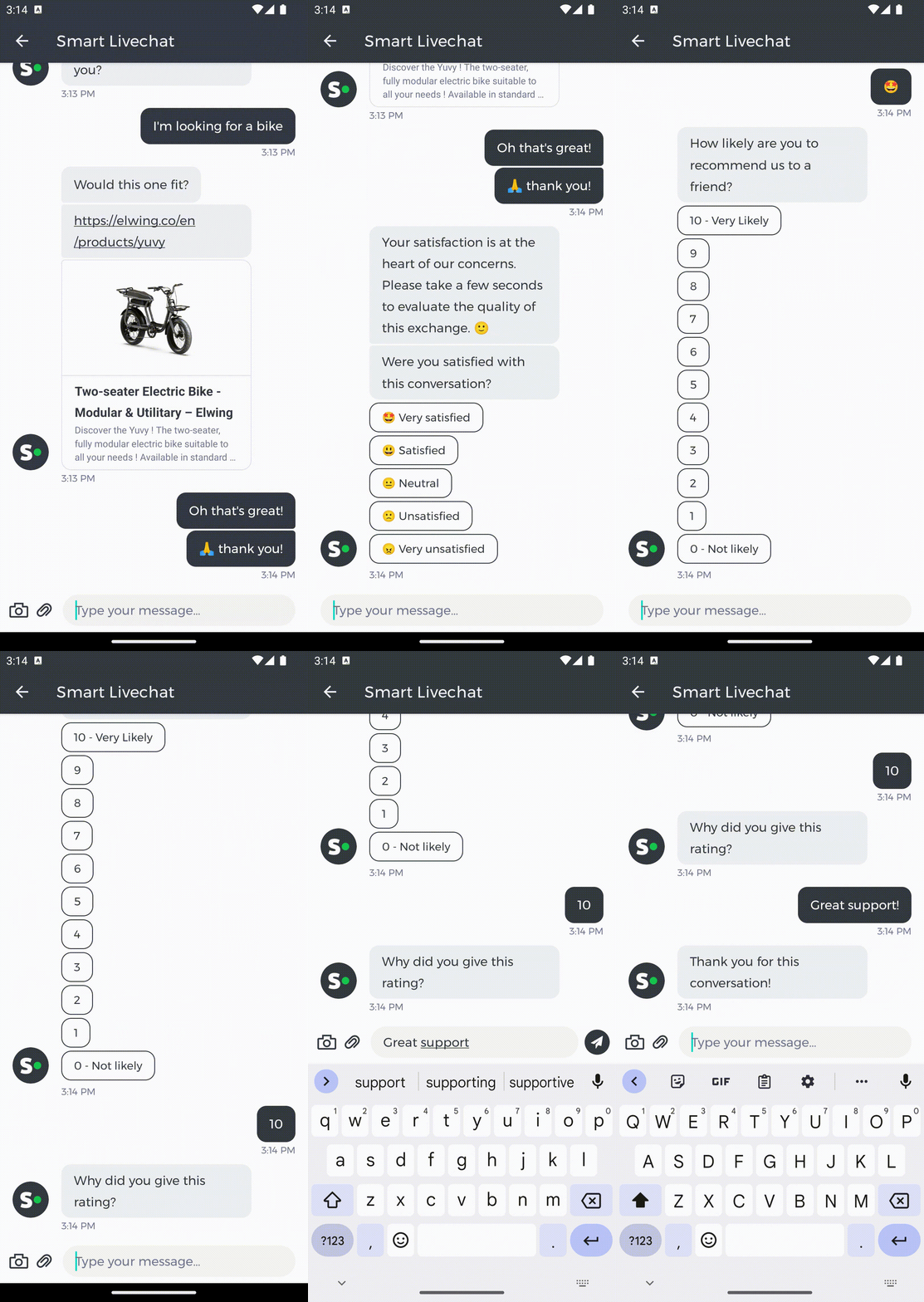
</code></pre>

{% endtab %}

{% tab title="iOS" %}

```swift
var configuration = ChatboxConfiguration()
configuration.incomingMessageBackgroundColor = .black
configuration.incomingMessageTextColor = .yellow
configuration.incomingMessageBorderColor = .yellow
configuration.outgoingMessageBackgroundColor = .yellow
configuration.outgoingMessageTextColor = .black
configuration.outgoingMessageBorderColor = .black
configuration.accentColor = .magenta
IAdvizeSDK.shared.chatboxController.setupChatbox(configuration: configuration)
```

{% endtab %}

{% tab title="React Native" %}

```javascript
var configuration = ChatboxConfiguration()
configuration.incomingMessageBackgroundColor = '#000000';
configuration.incomingMessageTextColor = '#FFFF00';
configuration.incomingMessageStrokeColor = '#FFFF00';
configuration.outgoingMessageBackgroundColor = '#FFFF00';
configuration.outgoingMessageTextColor = '#000000';
configuration.outgoingMessageStrokeColor = '#000000';
configuration.accentColor = '#FF00FF';
IAdvizeSDK.setChatboxConfiguration(configuration: configuration)
```

{% endtab %}

{% tab title="Flutter" %}

```dart
final ChatboxConfiguration configuration = ChatboxConfiguration(
  incomingMessageBackgroundColor: Colors.black,
  incomingMessageTextColor: Colors.yellow,
  incomingMessageStrokeColor: Colors.yellow,
  outgoingMessageBackgroundColor: Colors.yellow,
  outgoingMessageTextColor: Colors.black,
  outgoingMessageStrokeColor: Colors.black,
  accentColor: Colors.magenta,
);
IAdvizeSdk.setChatboxConfiguration(configuration);
```

{% endtab %}
{% endtabs %}

### **4️⃣ Using a brand avatar**

The operator avatar displayed alongside his messages can be updated for branding purposes. You can specify a drawable either via an URL or a local resource.

{% tabs %}
{% tab title="Android" %}

```kotlin
val configuration = ChatboxConfiguration()

// Update the incoming message avatar with a Drawable resource.
configuration.incomingMessageAvatar = IncomingMessageAvatar.Image(
  ContextCompat.getDrawable(context, R.drawable.ic_brand_avatar)
)

// Update the incoming message avatar with an URL.
configuration.incomingMessageAvatar = IncomingMessageAvatar.Url(URL("http://avatar.url"))

IAdvizeSDK.chatboxController.setupChatbox(configuration)
```

{% endtab %}

{% tab title="iOS" %}

```swift
var configuration = ChatboxConfiguration()

// Update the incoming message avatar with a UIImage.
configuration.incomingMessageAvatar = .image(image: UIImage(named: "BrandAvatar"))

// Update the incoming message avatar with an URL.
configuration.incomingMessageAvatar = .url(url: "http://avatar.url")

IAdvizeSDK.shared.chatboxController.setupChatbox(configuration: configuration)
```

{% endtab %}

{% tab title="React Native" %}

```javascript
const configuration: ChatboxConfiguration = {
  incomingMessageAvatarImageName: Image.resolveAssetSource(require('./test.jpeg')).uri,
  incomingMessageAvatarURL: 'https://picsum.photos/200/200',
};
```

{% hint style="warning" %}
*If you fill both fields, `incomingMessageAvatarImageName` will take priority over `incomingMessageAvatarURL`.*
{% endhint %}
{% endtab %}

{% tab title="Flutter" %}

```dart
final ChatboxConfiguration configuration = ChatboxConfiguration(
  incomingMessageAvatarImage: const AssetImage('assets/test.jpeg'),
  // OR
  incomingMessageAvatarURL: 'https://picsum.photos/200/200',
);
IAdvizeSdk.setChatboxConfiguration(configuration);
```

{% hint style="warning" %}
*If you fill both fields, `incomingMessageAvatarImageName` will take priority over `incomingMessageAvatarURL`.*
{% endhint %}
{% endtab %}
{% endtabs %}

{% hint style="warning" %}
*GIFs are not supported.*
{% endhint %}

### **5️⃣ Presenting a smaller Chatbox**

The Chatbox can be presented in a compact mode.

The visitor can then expand the chatbox manually. The chatbox is automatically expanded when the keyboard opens. This compact mode can be enabled by using a flag in the `ChatboxConfiguration.`

{% tabs %}
{% tab title="Android" %}

```kotlin
val configuration = ChatboxConfiguration()
configuration.smallerChatboxEnabled = true // Default is false
IAdvizeSDK.chatboxController.setupChatbox(configuration)
```

{% endtab %}

{% tab title="iOS" %}

```swift
var configuration = ChatboxConfiguration()
configuration.isSmallerChatboxEnabled = true // Default is false.
IAdvizeSDK.shared.chatboxController.setupChatbox(configuration: configuration)
```

{% endtab %}

{% tab title="React Native" %}

```javascript
const configuration: ChatboxConfiguration = {
  ...

  isSmallerChatboxEnabled: true,

  ...
};
IAdvizeSDK.setChatboxConfiguration(configuration);
```

{% endtab %}

{% tab title="Flutter" %}

```dart
IAdvizeSdk.setChatboxConfiguration(ChatboxConfiguration(
  // ...
  isSmallerChatboxEnabled: true,
  // ...
);
```

{% endtab %}
{% endtabs %}

## 🎨 Branding the Default Floating Button <a href="#branding-the-default-floating-button-android" id="branding-the-default-floating-button-android"></a>

By default, the SDK uses its own Default Floating Button for the user to engage in the conversation. This Default Floating Button display process is automated by the SDK and works out of the box. You have however limited possibilities to brand it to your needs.

{% tabs %}
{% tab title="Android" %}
The Default Floating Button can be parametrized, both in its look (colors / icon) and position (anchor / margins) using the appropriate configuration:

```kotlin
val configuration = DefaultFloatingButtonConfiguration(
  anchor = Gravity.START or Gravity.BOTTOM,
  margins = DefaultFloatingButtonMargins(),
  backgroundTint = ContextCompat.getColor(this, R.color.colorPrimary),
  iconResIds = mapOf(
    ConversationChannel.CHAT to R.drawable.chat_icon,
    ConversationChannel.VIDEO to R.drawable.video_icon
  )
  iconTint = Color.WHITE
)
val option = DefaultFloatingButtonOption.Enabled(configuration)
IAdvizeSDK.defaultFloatingButtonController.setupDefaultFloatingButton(option)
```

⌨️ **In-context example:** [Default Floating Button Configuration](https://github.com/iadvize/iadvize-android-sdk/blob/master/example/mobile/src/main/java/com/iadvize/conversation/sdk/demo/feature/IAdvizeSDKConfig.kt#L52)
{% endtab %}

{% tab title="iOS" %}
The Default Floating Button will use hardcoded icons and the `ChatboxConfiguration.accentColor` as background color:

```swift
var configuration = ChatboxConfiguration()
configuration.accentColor = .red
IAdvizeSDK.shared.chatboxController.setupChatbox(configuration: configuration)
```

The Default Floating Button is anchored to the bottom left side of the screen. You can modify its placement by specifying the button margins:

```swift
IAdvizeSDK.shared.chatboxController.setFloatingButtonPosition(leftMargin: 20.0, bottomMargin: 20.0)
```

{% endtab %}

{% tab title="React Native" %}
The Default Floating Button will use hardcoded icons and the `ChatboxConfiguration.accentColor` as background color:

```javascript
const configuration: ChatboxConfiguration = {
  accentColor: '#000000',
};
```

The Default Floating Button is anchored to the bottom left side of the screen. You can modify its placement by specifying the button margins:

```javascript
IAdvizeSDK.setFloatingButtonPosition(20, 20);
```

{% endtab %}

{% tab title="Flutter" %}
The Default Floating Button will use hardcoded icons and the `ChatboxConfiguration.accentColor` as background color:

```dart
final ChatboxConfiguration configuration = ChatboxConfiguration(
  accentColor: Colors.red,
);
IAdvizeSdk.setChatboxConfiguration(configuration);
```

The Default Floating Button is anchored to the bottom left side of the screen. You can modify its placement by specifying the button margins:

```dart
IAdvizeSdk.setFloatingButtonPosition(leftMargin: 20, bottomMargin: 20);
```

{% endtab %}
{% endtabs %}

## ✨ Using a custom chat button <a href="#using-a-custom-chat-button-android" id="using-a-custom-chat-button-android"></a>

If you are not satisfied with the Default Floating Button look and feel or if you want to implement a specific behavior related to its display you may need to use a custom conversation button.

With a custom button it is your responsibility to:

* design the floating or fixed button to invite your user to chat
* hide/show the button following the active targeting rule availability and the ongoing conversation status
* open the Chatbox when the user presses your button

### **1️⃣ Disabling the Default Floating Button**

{% tabs %}
{% tab title="Android" %}

```kotlin
IAdvizeSDK.defaultFloatingButtonController.setupDefaultFloatingButton(DefaultFloatingButtonOption.Disabled)
```

{% endtab %}

{% tab title="iOS" %}

```swift
IAdvizeSDK.shared.chatboxController.useDefaultFloatingButton = false
```

{% endtab %}

{% tab title="React Native" %}

```javascript
IAdvizeSDK.setDefaultFloatingButton(false);
```

{% endtab %}

{% tab title="Flutter" %}

```dart
IAdvizeSdk.setDefaultFloatingButton(false);
```

{% endtab %}
{% endtabs %}

### **2️⃣ Displaying/hiding the chat button**

The chat button is linked to the targeting and conversation workflow and should update its visibility each time the status of those workflows is changed. First of all you need to implement the appropriate callbacks:

{% tabs %}
{% tab title="Android" %}

```kotlin
IAdvizeSDK.targetingController.listeners.add(object : TargetingListener {
  override fun onActiveTargetingRuleAvailabilityUpdated(isActiveTargetingRuleAvailable: Boolean) {
    // SDK active rule availability changed to isActiveTargetingRuleAvailable
    updateChatButtonVisibility()
  }
  override fun onActiveTargetingRuleAvailabilityUpdateFailed(error: IAdvizeSDK.Error) {
    // SDK active rule availability failed
    updateChatButtonVisibility()

    // You may launch the targeting again based on the error type
  }
})

IAdvizeSDK.conversationController.listeners.add(object : ConversationListener {
  override fun onOngoingConversationUpdated(ongoingConversation: OngoingConversation?) {
    // SDK ongoing conversation has updated
    updateChatButtonVisibility()
  }
  override fun onNewMessageReceived(content: String) {
    // A new message was received via the SDK
  }
  override fun handleClickedUrl(uri: Uri): Boolean {
    // A message link was tapped, return true if you want your app to handle it
    return false
  }
})
```

{% endtab %}

{% tab title="iOS" %}

```swift
extension IntegrationApp: TargetingControllerDelegate {
  func activeTargetingRuleAvailabilityDidUpdate(isActiveTargetingRuleAvailable: Bool) {
    // SDK active rule availability changed to isActiveTargetingRuleAvailable
    updateChatButtonVisibility()
  }
  func activeTargetingRuleDidFailToUpdate(error: TargetingError) {
   // SDK active rule availability failed
    updateChatButtonVisibility()

    // You may launch the targeting again based on the error type
  }
}
    
extension IntegrationApp: ConversationControllerDelegate {
  func ongoingConversationUpdated(ongoingConversation: IAdvizeConversationSDK.OngoingConversation?) {
    // SDK ongoing conversation status changed
    updateChatButtonVisibility()
  }
  func didReceiveNewMessage(content: String) {
    // A new message was received via the SDK
  }
  func conversationController(_ controller: ConversationController, shouldOpen url: URL) -> Bool {
    // A message link was tapped, return false if you want your app to handle it
  }
}

class IntegrationApp {
  IAdvizeSDK.shared.targetingController.delegate = self
  IAdvizeSDK.shared.conversationController.delegate = self
}
```

{% endtab %}

{% tab title="React Native" %}

```javascript
IAdvizeSDKListeners.onActiveTargetingRuleAvailabilityUpdated(function (eventData: any) {
  // SDK active rule availability changed
  updateChatButtonVisibility()
});

IAdvizeSDKListeners.onActiveTargetingRuleAvailabilityUpdateFailed(function (eventData: any) {
   // SDK active rule availability failed
    updateChatButtonVisibility()

    // You may launch the targeting again based on the error type
});

IAdvizeSDKListeners.onOngoingConversationStatusChanged(function (eventData: any) {
  // SDK ongoing conversation status changed
  updateChatButtonVisibility()
});
```

{% endtab %}

{% tab title="Flutter" %}

```dart
IAdvizeSdk.setConversationListener(manageUrlClick: true);
IAdvizeSdk.onOngoingConversationUpdated.listen((bool ongoing) {
  // SDK ongoing conversation status changed
  _updateCustomChatButtonVisibility();
});

IAdvizeSdk.setOnActiveTargetingRuleAvailabilityListener();
IAdvizeSdk.onActiveTargetingRuleAvailabilityUpdated.listen((bool available) {
  // SDK active rule availability changed
  _updateCustomChatButtonVisibility();
});
IAdvizeSdk.onActiveTargetingRuleAvailabilityUpdateFailed.listen((Map<String, String> error) {
   // SDK active rule availability failed
   updateChatButtonVisibility()

   // You may launch the targeting again based on the error type
});
```

{% endtab %}
{% endtabs %}

The chat button gives access to the Chatbox so it should be visible:

* at all times when a conversation is ongoing to allow the visitor to come back to the current conversation
* when the active targeting rule is available, to engage the visitor to chat

{% tabs %}
{% tab title="Android" %}

```kotlin
fun updateChatButtonVisibility() {
  val sdkActivated = IAdvizeSDK.activationStatus == IAdvizeSDK.ActivationStatus.ACTIVATED
  val chatboxOpened = IAdvizeSDK.chatboxController.isChatboxPresented()
  val ruleAvailable = IAdvizeSDK.targetingController.isActiveTargetingRuleAvailable()
  val hasOngoingConv = IAdvizeSDK.conversationController.ongoingConversation() != null

  if (sdkActivated && !chatboxOpened && (hasOngoingConv || ruleAvailable)) {
    showChatButton()
  } else {
    hideChatButton()
  }
}
```

{% endtab %}

{% tab title="iOS" %}

```swift
func updateChatButtonVisibility() {  
  guard IAdvizeSDK.shared.activationStatus == .activated else {
    hideChatButton()
    return
  }
  guard !IAdvizeSDK.shared.chatboxController.isChatboxPresented() else {
    hideChatButton()
    return
  }
  guard IAdvizeSDK.shared.conversationController.ongoingConversation() != nil ||
        IAdvizeSDK.shared.targetingController.isActiveTargetingRuleAvailable else {
      hideChatButton()
      return
  }
  showChatButton()
}
```

{% endtab %}

{% tab title="React Native" %}

```javascript
const updateChatButtonVisibility = async () => {
  const ruleAvailable = IAdvizeSDK.isActiveTargetingRuleAvailable()
  const hasOngoingConv = IAdvizeSDK.ongoingConversationId().trim().length !== 0
  const chatboxOpened = IAdvizeSDK.isChatboxPresented()

  if (!chatboxOpened && (hasOngoingConv || ruleAvailable)) {
    showChatButton()
  } else {
    hideChatButton()
  }
};
```

{% endtab %}

{% tab title="Flutter" %}

```dart
bool _showCustomButton = false;

Future _updateCustomChatButtonVisibility() async {
  final bool sdkActivated = await IAdvizeSdk.isSDKActivated();
  final bool ruleAvailable = await IAdvizeSdk.isActiveTargetingRuleAvailable();
  final bool hasOngoingConv = await ongoingConversationId() != null;

  setState(() {
    _showCustomButton = sdkActivated && (hasOngoingConv || ruleAvailable);
  });
}
```

{% endtab %}
{% endtabs %}

### **3️⃣ Opening the Chatbox**

When the visitor taps on your custom chat button you should open the Chatbox by calling the following method:

{% tabs %}
{% tab title="Android" %}

```kotlin
IAdvizeSDK.chatboxController.presentChatbox(context)
```

⌨️ **In-context example:** [Full custom chat button implementation](https://gist.github.com/Judas/d0a34a50f1b6b8d542d77af5db9d9787)
{% endtab %}

{% tab title="iOS" %}

```swift
IAdvizeSDK.shared.chatboxController.presentChatbox(
  animated: Bool,
  presentingViewController: UIViewController?
) {
  // ...
}
```

⌨️ **In-context example:** [Full custom chat button implementation](https://gist.github.com/alexandrekarst/74da3ce5a9eaf68f7bd83eaf77c6d3dc)
{% endtab %}

{% tab title="React Native" %}

```javascript
IAdvizeSDK.presentChatbox()
```

{% endtab %}

{% tab title="Flutter" %}

```dart
IAdvizeSdk.presentChatbox();
```

{% endtab %}
{% endtabs %}

You can be informed of the Chatbox opening/closing by subscribing to the right listener:

{% tabs %}
{% tab title="Android" %}

```kotlin
IAdvizeSDK.chatboxController.listeners.add( object : ChatboxListener {
    override fun onChatboxOpened() {
        Log.d("TEST", "Chatbox has opened")
    }

    override fun onChatboxClosed() {
        Log.d("TEST", "Chatbox has closed")
    }
})
```

{% endtab %}

{% tab title="iOS" %}

```swift
IAdvizeSDK.shared.chatboxController.delegate = self

extension MyApp: ChatboxControllerDelegate {
    public func chatboxDidOpen() {
        print("Chatbox has opened")
    }

    public func chatboxDidClose() {
        print("Chatbox has closed")
    }
}
```

⌨️ **In-context example:** [Full custom chat button implementation](https://gist.github.com/alexandrekarst/74da3ce5a9eaf68f7bd83eaf77c6d3dc)
{% endtab %}

{% tab title="React Native" %}

```javascript
IAdvizeSDKListeners.onChatboxOpened(function (eventData: any) {
  console.log('Chatbox has opened');
});

IAdvizeSDKListeners.onChatboxClosed(function (eventData: any) {
  console.log('Chatbox has closed');
});
```

{% endtab %}

{% tab title="Flutter" %}

```dart
IAdvizeSdk.setChatboxListener();
StreamSubscription _chatboxOpenedSubscription = IAdvizeSdk.onChatboxOpened
    .listen((event) => log('Chatbox has opened'));
StreamSubscription _chatboxClosedSubscription = IAdvizeSdk.onChatboxClosed
    .listen((event) => log('Chatbox has closed'));
```

{% endtab %}
{% endtabs %}

## 🔔 Handling push notifications <a href="#handling-push-notifications-android" id="handling-push-notifications-android"></a>

{% hint style="warning" %}
*Before starting this part you will need to configure push notifications inside your application. You can refer to the following resources if needed:*

{% tabs %}
{% tab title="Android" %}
[Firebase Cloud Messaging documentation](https://firebase.google.com/docs/cloud-messaging/android/client)
{% endtab %}

{% tab title="iOS" %}
[Push notification setup tutorial](https://www.kodeco.com/11395893-push-notifications-tutorial-getting-started)
{% endtab %}

{% tab title="React Native" %}
[React Native Firebase Setup](https://rnfirebase.io/)

[React Native Firebase Messaging Setup](https://rnfirebase.io/messaging/usage)
{% endtab %}

{% tab title="Flutter" %}
[Flutter Firebase Setup](https://firebase.google.com/docs/flutter/setup)

[Flutter Firebase Messaging Setup](https://firebase.google.com/docs/cloud-messaging/flutter/client)
{% endtab %}
{% endtabs %}

*You will also need to ensure that the push notifications are setup in your iAdvize project. The process is described in the* [*SDK Knowledge Base*](https://help.iadvize.com/hc/en-gb/articles/360019839480)*.*
{% endhint %}

### **1️⃣ Registering the device token**

For the SDK to be able to send notifications to the visitor’s device, its unique `device push token` must be registered:

{% tabs %}
{% tab title="Android" %}

```kotlin
class NotificationService : FirebaseMessagingService() {
  override fun onNewToken(token: String) {
    super.onNewToken(token)
    IAdvizeSDK.notificationController.registerPushToken(token)
  }
}
```

⌨️ **In-context example:** [Device token register](https://github.com/iadvize/iadvize-android-sdk/blob/master/example/mobile/src/main/java/com/iadvize/conversation/sdk/demo/feature/notifications/NotificationService.kt#L55)
{% endtab %}

{% tab title="iOS" %}

```swift
IAdvizeSDK.shared.notificationController.registerPushToken("the_device_push_token", applicationMode: .prod)
```

⌨️ **In-context example:** [Device token register](https://github.com/iadvize/iadvize-ios-sdk/blob/master/example/SPMIntegration/SPMIntegration/Source/AppDelegate%2BPushNotification.swift#L27)
{% endtab %}

{% tab title="React Native" %}

```javascript
import messaging from '@react-native-firebase/messaging';

const registerPushToken = async () => {
  try {
    const token = await messaging().getToken();
    IAdvizeSDK.registerPushToken(token, ApplicationMode.DEV);
    console.log('iAdvize SDK registerPushToken success');
  } catch (e) {
    console.error(e);
  }
};
```

{% hint style="warning" %}
*The `ApplicationMode` is used only for the iOS application.*
{% endhint %}
{% endtab %}

{% tab title="Flutter" %}

```dart
import 'package:firebase_messaging/firebase_messaging.dart';

FirebaseMessaging.instance.onTokenRefresh.listen((fcmToken) {
  IAdvizeSdk.registerPushToken(pushToken: fcmToken, mode: ApplicationMode.dev);
}).onError((err) {
  log('Error registering token: $err');
});
```

{% hint style="warning" %}
*The `ApplicationMode` is used only for the iOS application.*
{% endhint %}
{% endtab %}
{% endtabs %}

### **2️⃣ Enabling/disabling push notifications**

Push notifications are activated during SDK activation, as long as you have setup the push notifications information for your app on the iAdvize administration website (process is described in the [SDK Knowledge Base](https://help.iadvize.com/hc/en-gb/articles/360019839480)). You can manually enable/disable them at any time using:

{% tabs %}
{% tab title="Android" %}

```kotlin
IAdvizeSDK.notificationController.enablePushNotifications(object : IAdvizeSDK.Callback {
  override fun onSuccess() {
    // Enable succeded
  }
  override fun onFailure(error: IAdvizeSDK.Error) {
    // Enable failed
  }
})

IAdvizeSDK.notificationController.disablePushNotifications(object : IAdvizeSDK.Callback {
  override fun onSuccess() {
    // Disable succeded
  }
  override fun onFailure(error: IAdvizeSDK.Error) {
    // Disable failed
  }
})
```

{% endtab %}

{% tab title="iOS" %}

```swift
IAdvizeSDK.shared.notificationController.enablePushNotifications { success in
  ...
}
    
IAdvizeSDK.shared.notificationController.disablePushNotifications { success in
  ...
}
```

{% endtab %}

{% tab title="React Native" %}

```javascript
try {
  await IAdvizeSDK.enablePushNotifications();
  // Push notifications enabled
} catch (e) {
  // Error enabling push notifications
}

try {
  await IAdvizeSDK.disablePushNotifications();
  // Push notifications disabled
} catch (e) {
  // Error disabling push notifications
}
```

{% endtab %}

{% tab title="Flutter" %}

```dart
IAdvizeSdk.enablePushNotifications().then((bool success) =>
  log('Push notifications enabled $success'));

IAdvizeSdk.disablePushNotifications().then((bool success) =>
  log('Push notifications disabkled $success'));
```

{% endtab %}
{% endtabs %}

### **3️⃣ Handling push notifications reception**

Once setup, you will receive push notifications when the operator sends any message. As the SDK notifications are caught in the same place than your app other notifications, you first have to distinguish if the received notification comes from iAdvize or not.

{% tabs %}
{% tab title="Android" %}

```kotlin
class NotificationService : FirebaseMessagingService() {
  override fun onMessageReceived(remoteMessage: RemoteMessage) {
    if (IAdvizeSDK.notificationController.isIAdvizePushNotification(remoteMessage.data)) {
      // This is an iAdvize SDK notification
    }
  }
}
```

{% endtab %}

{% tab title="iOS" %}

```swift
func application(
  _ application: UIApplication,
  didReceiveRemoteNotification userInfo: [AnyHashable: Any],
  fetchCompletionHandler completionHandler: @escaping (UIBackgroundFetchResult) -> Void
) {
  if IAdvizeSDK.shared.notificationController.isIAdvizePushNotification(with: userInfo) {
    // This is an iAdvize SDK notification
  }
}
```

{% endtab %}

{% tab title="React Native" %}

```javascript
// Firebase Messaging notification handlers

messaging().onMessage(async remoteMessage => {
  console.log('Received a foreground notification message');
  handleNotification(remoteMessage)
});

messaging().setBackgroundMessageHandler(async remoteMessage => {
  console.log('Received a background notification message');
  handleNotification(remoteMessage)
});

function handleNotification(remoteMessage: any) {
  console.log('handling notification', JSON.stringify(remoteMessage));
  var isIAdvizeSDKNotification = IAdvizeSDK.isIAdvizePushNotification(remoteMessage.data)
}
```

{% endtab %}

{% tab title="Flutter" %}

```dart
// Firebase Messaging notification handlers

@pragma('vm:entry-point')
Future _backgroundNotificationHandler(RemoteMessage message) async {
  log('Received a background notification message ${message}');
  handleNotification(message);
}

FirebaseMessaging.onBackgroundMessage(_backgroundNotificationHandler);

FirebaseMessaging.onMessage.listen((RemoteMessage message) {
  log('Received a foreground notification message ${message}');
  handleNotification(message);
});

void handleNotification(RemoteMessage message) {
  log('handling notification $message');
  IAdvizeSdk.isIAdvizePushNotification(message.data).then(
    (bool isAdvizeNotification) =>
      log('Notification from iAdvize ? $isAdvizeNotification'));
}
```

{% endtab %}
{% endtabs %}

{% hint style="warning" %}
*Notifications will be received in your app for all messages sent by the agent. It is your responsibility to display the notification and to check whether or not it is relevant to display it. For instance, you don’t need to show a notification to the visitor when the Chatbox is opened*
{% endhint %}

{% tabs %}
{% tab title="Android" %}

```kotlin
fun shouldDisplayNotification(remoteMessage: RemoteMessage) =
  IAdvizeSDK.notificationController.isIAdvizePushNotification(remoteMessage.data) 
  && !IAdvizeSDK.chatboxController.isChatboxPresented()
```

{% endtab %}

{% tab title="iOS" %}

```swift
func shouldDisplayNotification(userInfo: [AnyHashable: Any]) -> Bool {
  guard IAdvizeSDK.shared.notificationController.isIAdvizePushNotification(with: userInfo) else {
    return false
  }
  
  guard !IAdvizeSDK.shared.chatboxController.isChatboxPresented() else {
    return false
  }
  
  return true
}
```

{% endtab %}

{% tab title="React Native" %}

```javascript
function handleNotification(remoteMessage: any) {
  console.log('handling notification', JSON.stringify(remoteMessage));

  var chatboxOpened = IAdvizeSDK.isChatboxPresented()
  var isIAdvizeSDKNotification = IAdvizeSDK.isIAdvizePushNotification(remoteMessage.data)
  var shouldDisplay = chatboxOpened == false && isIAdvizeSDKNotification

  console.log("chatboxOpened:", chatboxOpened, "isIAdvizeSDKNotification", isIAdvizeSDKNotification, "shouldDisplay=>", shouldDisplay);
}
```

{% endtab %}

{% tab title="Flutter" %}

```dart
void handleNotification(RemoteMessage message) {
  log('handling notification $message');

  Future isIAdvizeSDKNotification =IAdvizeSdk.isIAdvizePushNotification(message.data);
  Future isChatboxPresented = IAdvizeSdk.isChatboxPresented();

  Future.wait([isIAdvizeSDKNotification, isChatboxPresented]).then((List flags) {
    bool shouldDisplay = flags[0] && !flags[1];
    log("isIAdvizeSDKNotification:${flags[0]} isChatboxPresented:${flags[1]} shouldDisplay:$shouldDisplay");
  });
}
```

{% endtab %}
{% endtabs %}

### **4️⃣ Customizing the notification**

{% tabs %}
{% tab title="Android" %}
You are responsible for displaying the notification so you can use any title / text / icon you want. The text sent by the agent is available in the `content` part of the notification data received.

```kotlin
override fun onMessageReceived(remoteMessage: RemoteMessage) {
  if (IAdvizeSDK.notificationController.isIAdvizePushNotification(remoteMessage.data)) {
    val agentMessageReceived = remoteMessage.data["content"] ?: "Default text"
  }
}
```

⌨️ **In-context example:** [Handling received notification](https://github.com/iadvize/iadvize-android-sdk/blob/master/example/mobile/src/main/java/com/iadvize/conversation/sdk/demo/feature/notifications/NotificationService.kt#L64)
{% endtab %}

{% tab title="iOS" %}
By default, the title of the notification is set to the string key `iadvize_notification_title`. If you want to update/translate this title you can override this value by adding the `iadvize_notification_title` key in your `Localizable.strings` file:

```swift
"iadvize_notification_title" = "You have received a new message";
```

{% endtab %}

{% tab title="React Native" %}

```javascript
function handleNotification(remoteMessage: any) {
  console.log('handling notification', JSON.stringify(remoteMessage));
  var messageContent = remoteMessage.data.content
}
```

{% endtab %}

{% tab title="Flutter" %}

```dart
void handleNotification(RemoteMessage message) {
  log('handling notification $message');
  String messageContent = message.data["content"];
}
```

{% endtab %}
{% endtabs %}

### **5️⃣ Clearing push notifications**

The iAdvize SDK notifications are automatically cleared from the Notification Tray / Notification Center when the Chatbox is opened. If you want to clear them at any other given time you can call this API:

{% tabs %}
{% tab title="Android" %}

```kotlin
IAdvizeSDK.notificationController.clearIAdvizePushNotifications()
```

{% endtab %}

{% tab title="iOS" %}

```swift
IAdvizeSDK.shared.notificationController.clearIAdvizePushNotifications()
```

{% endtab %}

{% tab title="React Native" %}

```javascript
IAdvizeSDK.clearIAdvizePushNotifications()
```

{% endtab %}

{% tab title="Flutter" %}

```dart
IAdvizeSdk.clearIAdvizePushNotifications()
```

{% endtab %}
{% endtabs %}

However, as notifications display depends on the Notification Channel, some configuration is needed in order for this behavior to work correctly:

{% tabs %}
{% tab title="Android" %}
First of all create the Notification Channel:

```kotlin
IAdvizeSDK.notificationController.createNotificationChannel(context)
```

Then, when receiving the notification, send it through the SDK Notification Channel if the notification is from iAdvize:

```kotlin
if (IAdvizeSDK.notificationController.isIAdvizePushNotification(remoteMessage.data)) {
  val notification = NotificationCompat.Builder(this, IAdvizeSDK.notificationController.channelId)
    ... // notification config
    .build()
} else {
    // Host app notification handling
}
```

{% endtab %}

{% tab title="iOS" %}
On iOS no setup is required, the clearing of the push notificatiosn works out of the box.
{% endtab %}

{% tab title="React Native" %}
First of all create the Notification Channel:

```javascript
IAdvizeSDK.createNotificationChannel();
```

You don't need to check that you are on the Android platform before calling this API, as it does nothing on the iOS platform.

Then, when receiving the notification, send it through the SDK Notification Channel if the notification is from iAdvize. In order to show a notification in a specific Notification Channel, please refer to your Notification library documentation.
{% endtab %}

{% tab title="Flutter" %}
First of all create the Notification Channel:

```javascript
IAdvizeSdk.createNotificationChannel();
```

You don't need to check that you are on the Android platform before calling this API, as it does nothing on the iOS platform.

Then, when receiving the notification, send it through the SDK Notification Channel if the notification is from iAdvize. In order to show a notification in a specific Notification Channel, please refer to your Notification library documentation.
{% endtab %}
{% endtabs %}

## 📈 Adding value to the conversation <a href="#adding-value-to-the-conversation-android" id="adding-value-to-the-conversation-android"></a>

### **1️⃣ Registering visitor transactions**

You can register a transaction made within your application:

{% tabs %}
{% tab title="Android" %}

```kotlin
IAdvizeSDK.transactionController.register(
  Transaction(
    "transactionId",
    Date(),
    10.00,
    Currency.EUR
  )
)
```

{% endtab %}

{% tab title="iOS" %}

```swift
let transaction = Transaction(externalTransactionId: "transactionId", date: Date(), amount: 10.0, currency: .eur)
IAdvizeSDK.shared.transactionController.registerTransaction(transaction)
```

{% endtab %}

{% tab title="React Native" %}

```javascript
const transaction: Transaction = {
  transactionId: 'transactionId',
  currency: 'EUR',
  amount: 10
};
IAdvizeSDK.registerTransaction(transaction);
```

{% hint style="warning" %}
*The currency value should respect* [*ISO 4217*](https://en.wikipedia.org/wiki/ISO_4217)*.*
{% endhint %}
{% endtab %}

{% tab title="Flutter" %}

```javascript
IAdvizeSdk.registerTransaction(Transaction(
  transactionId: 'transactionId',
  currency: 'EUR',
  amount: 10
));
```

{% hint style="warning" %}
*The currency value should respect* [*ISO 4217*](https://en.wikipedia.org/wiki/ISO_4217)*.*
{% endhint %}
{% endtab %}
{% endtabs %}

### **2️⃣ Saving visitor custom data**

The iAdvize Mobile SDK allows you to save data related to the visitor conversation:

{% tabs %}
{% tab title="Android" %}

```kotlin
IAdvizeSDK.visitorController.registerCustomData(listOf(
  CustomData.fromString("Test", "Test"),
  CustomData.fromBoolean("Test2", false),
  CustomData.fromDouble("Test3", 2.0),
  CustomData.fromInt("Test4", 3)
),
object : IAdvizeSDK.Callback {
  override fun onSuccess() {
    // Success
  }
  override fun onFailure(error: IAdvizeSDK.Error) {
    // Failure
  }
})
```

{% endtab %}

{% tab title="iOS" %}

```swift
IAdvizeSDK.shared.visitorController.registerCustomData(
  customData:
    ["Test": .customDataString("Test"),
     "Test2": .customDataBoolean(false),
     "Test3": .customDataDouble(2.0),
     "Test4": .customDataInt(3)]
) { success in
    // completion handler
}
```

{% endtab %}

{% tab title="React Native" %}

```javascript
var customData = {
  "Test": "Test",
  "Test2": false,
  "Test3": 2.5,
  "Test4": 3
};
IAdvizeSDK.registerCustomData(customData);
```

{% endtab %}

{% tab title="Flutter" %}

```dart
List customData = [
  CustomData.fromString("Test", "Test"),
  CustomData.fromBoolean("Test2", false),
  CustomData.fromDouble("Test3", 2.0),
  CustomData.fromInt("Test4", 3)
];
IAdvizeSdk.registerCustomData(customData).then((bool success) =>
    log('iAdvize Example : custom data registered: $success'));
```

{% endtab %}
{% endtabs %}

{% hint style="warning" %}
*As those data are related to the conversation they cannot be sent if there is no ongoing conversation. Custom data registered **before** the start of a conversation are stored and the SDK automatically tries to send them when the conversation starts.*
{% endhint %}

The visitor data you registered are displayed in the iAdvize Operator Desk in the conversation sidebar, in a tab labelled `Custom data`:

![Custom data tab shows registered data from the SDK](https://raw.githubusercontent.com/iadvize/documentation/master/docs/assets/images/mobile-sdk/06-custom-data.png)

## 👍 Fetching visitor satisfaction <a href="#fetching-visitor-satisfaction-android" id="fetching-visitor-satisfaction-android"></a>

The satisfaction survey is automatically sent to the visitor at the end of the conversation, as long as it is activated in the iAdvize administration website. The survey is presented to the visitor in a conversational approach, directly into the Chatbox.

<div align="center" data-full-width="false"><img src="https://raw.githubusercontent.com/iadvize/documentation/master/docs/assets/images/mobile-sdk/07-satisfaction-survey.gif" alt="Satisfaction survey" width="375"></div>

{% hint style="info" %}
*Only the `CSAT`, `NPS` and `COMMENT` steps of the survey are supported.*
{% endhint %}


---

# Agent Instructions: Querying This Documentation

If you need additional information that is not directly available in this page, you can query the documentation dynamically by asking a question.

Perform an HTTP GET request on the current page URL with the `ask` query parameter:

```
GET https://docs.iadvize.dev/technologies/web-and-mobile-sdk/mobile-sdk/fourme.md?ask=<question>
```

The question should be specific, self-contained, and written in natural language.
The response will contain a direct answer to the question and relevant excerpts and sources from the documentation.

Use this mechanism when the answer is not explicitly present in the current page, you need clarification or additional context, or you want to retrieve related documentation sections.
